How Docker Really Works: Containers, Volumes and Troubleshooting for Homelab Administrators
Docker is much more than a tool for running applications. Understanding how images, containers, volumes and networking work together is essential for building reliable and maintainable services. In this article, you'll learn the architecture behind Docker, why containers should be disposable, how persistent storage works, how to perform safe updates and backups, and how to troubleshoot issues methodically across containers, reverse proxies, firewalls and security layers.
Why Understanding Docker Matters More Than Memorizing Commands
Docker is one of the most widely used technologies in modern infrastructure. It powers everything from personal homelabs to large-scale production environments serving millions of users.
Yet many administrators learn Docker backwards.
They memorize commands.
They learn how to start a container.
They learn how to pull an image.
They learn how to expose a port.
But they never fully understand what Docker is actually doing under the hood.
This approach works until something breaks.
Then the troubleshooting begins:
- Why did my update fail?
- Why is my container restarting continuously?
- Why can I access the application locally but not through Nginx?
- Why did I lose data after recreating a container?
The answer is usually not another command.
The answer is understanding the architecture.
In this article, you'll learn how Docker really works, why containers should be disposable, how persistent storage is designed, and how to troubleshoot problems using a structured methodology instead of guesswork.
The Most Common Docker Misconception
The biggest mistake beginners make is believing that a container is the application.
It isn't.
A container is simply a runtime environment.
The application is only one component inside that environment.
When people think of containers as permanent installations, they start making poor architectural decisions:
- Storing data inside containers
- Avoiding updates out of fear
- Creating complex backup procedures
- Rebuilding entire services unnecessarily
A better mental model is this:
Container = Temporary
Data = Permanent
Once you understand this principle, Docker becomes dramatically easier to manage.
Understanding Images, Containers and Volumes
Most Docker confusion comes from mixing up three different concepts.
Let's separate them.
Images: The Blueprint
An image is a template.
It contains everything needed to create a running environment:
- Operating system layers
- Libraries
- Dependencies
- Application files
However, an image does not execute anything.
Think of an image as an architectural blueprint.
A blueprint describes a house.
It is not the house itself.
When you download an image, you're simply downloading instructions that Docker can later use to create a container.
Containers: The Running Instance
A container is a live instance created from an image.
If the image is the blueprint, the container is the house built from that blueprint.
The container contains:
- Running processes
- Memory allocation
- Network connectivity
- Temporary filesystem layers
This distinction matters because containers can be destroyed and recreated at any time.
That is exactly how Docker was designed to work.
Volumes: Where the Real Data Lives
Volumes solve the most important problem in containerized environments.
Persistence.
Applications generate data:
- Databases
- Configuration files
- Media libraries
- User uploads
- Logs
If those files remain inside the container, they disappear when the container is removed.
That is why persistent storage exists.
The application runs inside the container.
The data lives outside it.
This separation is the foundation of reliable Docker deployments.
Why Bind Mounts Are Popular in Homelabs
In enterprise environments, named Docker volumes are common.
In homelabs, bind mounts are often preferred.
A bind mount maps a real host directory into a container.
For example:
/srv/media
may be exposed inside a container as:
/media
This approach offers several advantages.
Easier Backups
The host directory contains the actual data.
There is no need to interact with Docker to perform backups.
Simply back up the filesystem.
Easier Migration
Moving to a new server becomes straightforward.
Copy the data directories.
Recreate the containers.
Everything returns exactly as before.
Easier Inspection
Administrators can directly inspect files from the operating system without entering the container.
This greatly simplifies troubleshooting.
Understanding Docker Networking
Networking is another area where many administrators become confused.
When a container starts, Docker creates networking components automatically.
A typical request follows a path similar to this:
Client
↓
Host Network
↓
Docker Network
↓
Container
↓
Application
Each layer can potentially fail.
That is why networking issues require systematic diagnosis.
The container may be healthy while a firewall rule blocks access.
The application may be working while the reverse proxy is misconfigured.
Understanding the path of a request is essential for effective troubleshooting.
The Lifecycle of a Docker Service
Every Dockerized service follows a predictable lifecycle.
Understanding that lifecycle helps administrators make better decisions.
Deployment
A new service usually follows these steps:
- Create persistent directories.
- Download the image.
- Create the container.
- Validate functionality.
- Configure reverse proxy access.
- Configure monitoring.
Notice something important.
Persistent storage comes first.
The container comes later.
That order is intentional.
Operation
Once deployed, the service enters normal operation.
At this stage administrators monitor:
- Availability
- Resource usage
- Logs
- Performance
- Connectivity
Docker becomes only one piece of a larger operational environment.
Maintenance
Eventually every service requires updates.
This is where Docker's design becomes extremely powerful.
Updating Containers Without Fear
Many administrators become nervous when updating containers.
This fear usually comes from treating containers as permanent assets.
In reality, Docker updates are often simpler than traditional software updates.
The process typically looks like this:
Download New Image
↓
Stop Old Container
↓
Remove Old Container
↓
Create New Container
↓
Reuse Existing Data
Notice what never changes.
The data.
The persistent storage remains untouched.
The container is replaced.
The information survives.
This is exactly why separating data from containers is so important.
What Should Actually Be Backed Up?
One of Docker's greatest strengths is reducing backup complexity.
A useful rule is:
Never back up something that can be recreated automatically.
Images can be downloaded again.
Containers can be recreated again.
What cannot be recreated automatically includes:
- Databases
- Application configurations
- User files
- Media libraries
- Business data
Those assets deserve backup protection.
The containers do not.
A Troubleshooting Methodology That Actually Works
Many administrators troubleshoot by randomly trying solutions until something works.
This approach wastes time.
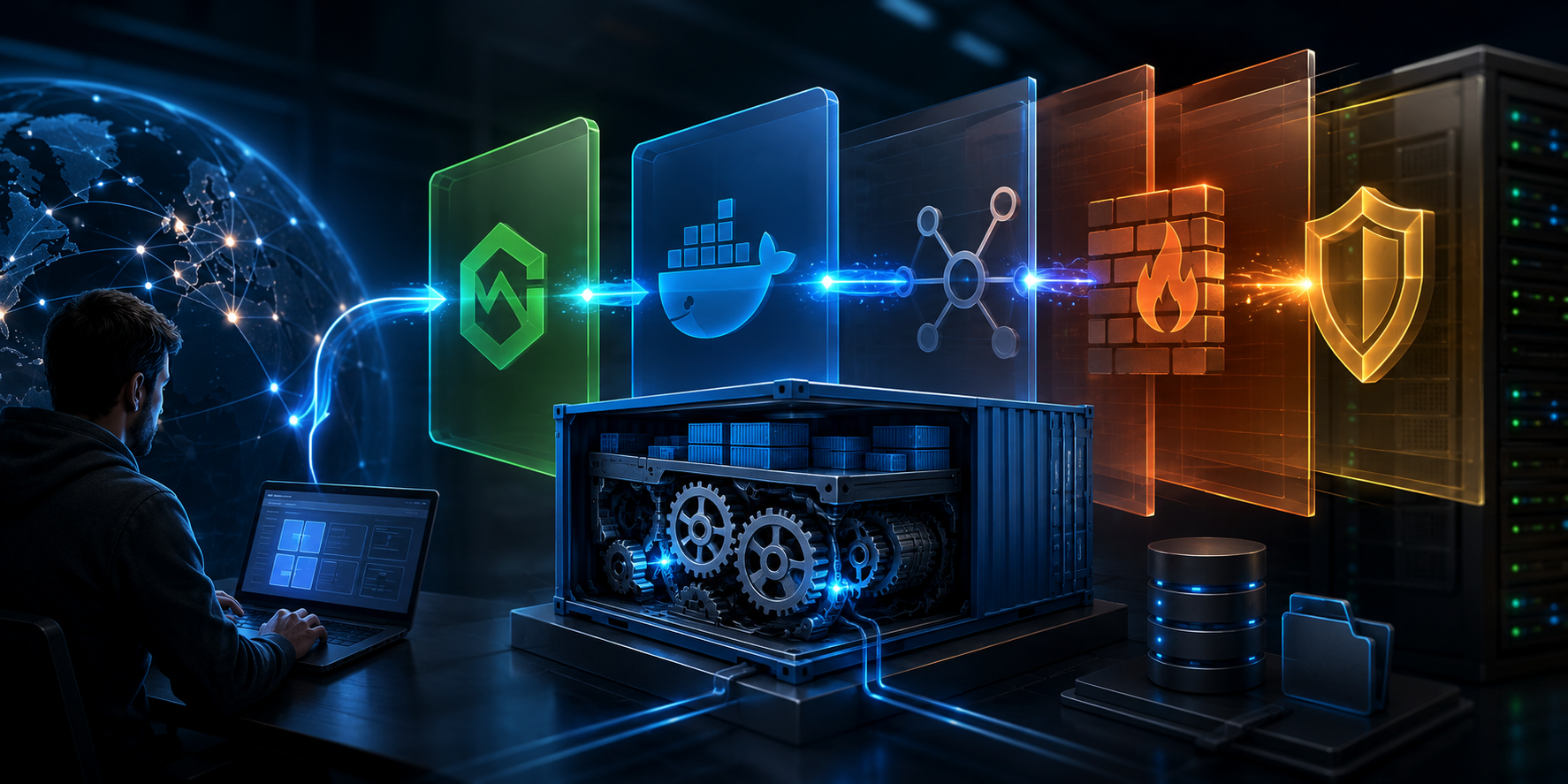
A better strategy is to follow the infrastructure layers.
Application
↓
Container
↓
Docker Network
↓
Host
↓
Firewall
↓
Security Layer
Every layer depends on the previous one.
Following this order dramatically reduces troubleshooting time.
Scenario 1: The Container Won't Start
A container failing to start is usually not a Docker problem.
Docker simply launches the process.
The real issue often involves:
- Missing environment variables
- Invalid configuration files
- Permission problems
- Missing directories
The first objective should always be understanding why the application exited.
Not rebuilding the container.
Scenario 2: The Port Is Already in Use
Sometimes Docker reports that a port cannot be bound.
Administrators often assume Docker is malfunctioning.
In reality, another process is already using that port.
This is a host-level issue, not a container issue.
Understanding which layer owns the problem prevents wasted effort.
Scenario 3: The Application Works Locally but Not Through Nginx
This is one of the most common homelab incidents.
The application responds correctly.
The container is healthy.
But the domain fails.
At this point the investigation should focus on:
- Reverse proxy configuration
- Firewall rules
- DNS resolution
- Security policies
Recreating containers rarely solves this category of problem.
Scenario 4: Continuous Restart Loops
A container that repeatedly restarts is usually a symptom.
Not the root cause.
The application is failing.
Docker is simply following its restart policy.
Common causes include:
- Invalid paths
- Missing files
- Incorrect permissions
- Missing variables
The visible symptom appears in Docker.
The actual problem exists elsewhere.
Why Security Layers Are Frequently Involved
Many Linux administrators eventually encounter situations where everything appears correct.
The container starts.
The ports are open.
The application is healthy.
Yet communication still fails.
This is often where security mechanisms become relevant.
Systems such as SELinux can restrict access to files, ports and network communication even when Docker itself is functioning perfectly.
Disabling security controls may appear to solve the issue.
Understanding why the restriction exists is usually the better solution.
When Docker Is Not the Problem
One of the most valuable lessons learned from running homelabs is that Docker often gets blamed for problems it did not create.
In many real-world incidents, the root cause turns out to be:
- Reverse proxy configuration
- Firewall rules
- DNS problems
- Filesystem permissions
- Security policies
Docker merely exposes those issues more clearly.
Recognizing this fact helps administrators troubleshoot with greater confidence and accuracy.
Lessons Learned From Running Docker in a Homelab
After operating multiple services in a homelab environment, a few patterns become obvious.
Containers should be disposable.
Data should remain outside containers.
Backups should target persistent storage.
Updates should replace containers rather than modify them.
Troubleshooting should follow infrastructure layers rather than intuition.
These principles dramatically reduce complexity and make Docker environments easier to maintain over time.
Conclusion
Docker is far more than a tool for running applications.
It is an architectural model that separates applications from data, simplifies deployment, streamlines updates and encourages reproducible infrastructure.
Once you understand the relationship between images, containers and persistent storage, many of Docker's design choices begin to make sense.
Updates become safer.
Backups become simpler.
Migrations become easier.
Troubleshooting becomes systematic.
The most important lesson is simple:
Containers are temporary.
Your data is not.
The sooner you embrace that mindset, the sooner Docker transforms from a collection of commands into a powerful infrastructure platform.